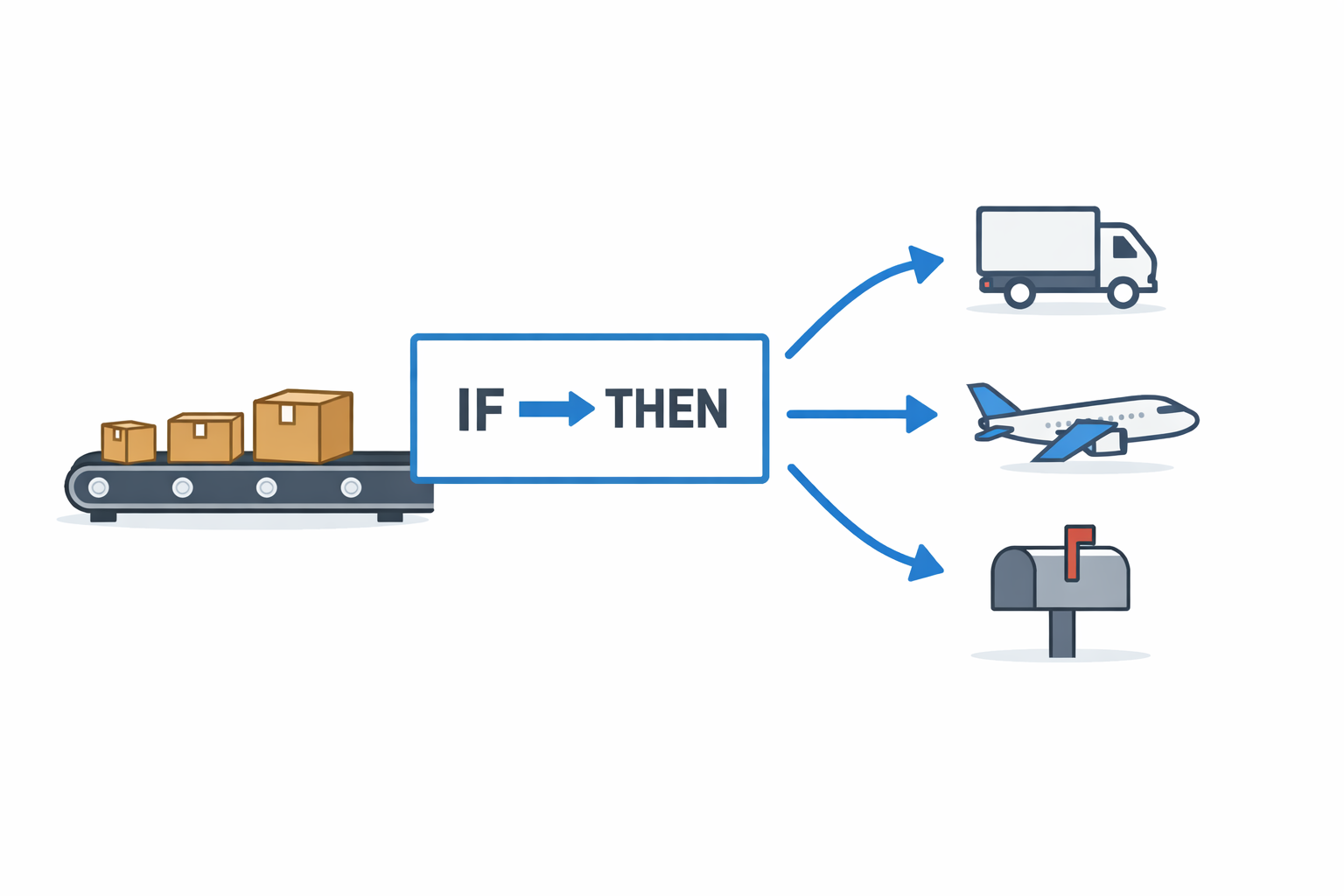
ShipStation automation rules automatically assign the right carrier and service to each order based on criteria you define. When configured properly, these rules eliminate repetitive manual decisions, reduce shipping errors, and ensure consistent carrier selection across all orders.The setup process involves creating IF/THEN statements in ShipStation: if an order meets specific criteria (weight, destination, product type), then the system applies a designated carrier service. These automation rules save time by performing actions you would otherwise do manually.
Why Automate Carrier Selection
Manual carrier selection creates bottlenecks as order volumes grow. Each order requires someone to review details, compare options, and choose a service. This process is time-intensive and inconsistent.
According to Statistics Canada, Canadian e-commerce sales continue growing substantially, driving increased parcel volumes that make manual shipping processes unsustainable. The pressure is real: 6 in 10 Canadian shoppers expect delivery within 2-3 days, and 79% add items to their cart specifically to qualify for free shipping thresholds. In this cost-sensitive market, every shipping decision affects your margins.
Automation addresses three core problems. First, it eliminates the time spent on repetitive decisions. Second, it ensures the same criteria always produce the same carrier choice, removing human error. Third, it scales effortlessly, whether you process 10 orders or 10,000 orders daily, automation handles carrier selection without additional labor.
Part n Parcel has seen businesses reduce fulfillment time by 30-40% after implementing proper automation rules. A Vancouver-based luxury fashion company was manually selecting carriers for every shipment through UPS. After migrating to automated carrier selection across FedEx, Purolator, and Canpar, they saved hours daily while cutting shipping costs by 57%.
Setting Up Carrier Selection Rules Step-by-Step
Access Automation Settings
Click the Settings icon in ShipStation, navigate to Automation, then select. Automation Rules from the sidebar. Only users with admin or configuration permissions can create or edit rules.
Create Your First Rule
Click the Create a Rule button. Give the rule a descriptive name that explains its function—for example, “FedEx Ground <1lb” or “Purolator Express to BC.” Clear names help you quickly identify rules when managing multiple automation configurations.
Define Rule Criteria
Choose to apply actions only to orders matching specific criteria, then click Add Criteria. Add conditions the order must meet for the rule to trigger.
Common criteria include:
- Total Weight (in ounces or pounds)
- Country (Canada, United States, etc.)
- Province or State
- Order value
- Product tags or SKU
- Customer tags
- Shipping method selected at checkout
Each criterion in a rule functions as an AND condition—the order must meet all criteria to trigger the rule. For example, setting Country = Canada AND Total Weight < 1 lb means both conditions must be true.
Set Carrier Actions
Click Add an Action and choose Set Carrier/Service/Package. This tells ShipStation which carrier service to assign when criteria are met. Use the Service dropdown to select the specific carrier option (FedEx Ground, Purolator Ground, Canpar Ground, UPS Standard, etc.).
Choose the appropriate package type if your carrier requires it. This step determines which shipping option gets applied automatically.
Save and Test
Click Save Rule to finalize. The rule will automatically run on incoming orders when they enter Awaiting Shipment or On Hold status for the first time.
To apply rules to orders already in your queue, use the Reprocess Automation Rules button in the Automation Rules settings. This re-runs all active rules on existing orders.
Rule Execution Order Matters
ShipStation processes automation rules sequentially from top to bottom of your rules list. If an order meets criteria for multiple rules, each applicable rule runs in order. When two rules try to set the same field, the later rule overwrites the earlier one.
You can reorder rules via drag-and-drop to control execution sequence. A common strategy: place broader rules first, followed by more specific rules. For example, set a general rule for “All orders under 1 lb → FedEx Ground” at the top, then add a specific rule below it: “Under 1 lb AND Express shipping requested → FedEx Standard Overnight.” The specific rule overrides the general rule for orders meeting both criteria.
Best Practices for Rule Design
Plan Around Your Shipping Profile
Before creating rules, analyze your shipping patterns. Define scenarios by weight, destination, and speed requirements. Which carrier offers the best rates for packages under 5 lbs within Ontario? Which service works best for heavy packages going to BC or Alberta?
Understanding dimensional weight pricing is critical for Canadian sellers. DIM weight applies heavily for FedEx, UPS, Canpar and Purolator—carriers calculate shipping based on package volume, not just actual weight. This matters most for bulky but lightweight items like clothing, home goods, or supplements in oversized boxes. A 2 lb package in a large box might be billed as 8 lbs based on dimensions.
Use ShipStation’s rate calculator to compare carrier rates across different package weights and zones. Map out these decisions before building rules.
Through Part n Parcel’s network of 240+ Canadian businesses, we’ve found that most companies benefit from 3-5 core automation rules covering the majority of shipments, with 2-3 specialized rules for edge cases like remote territories, expedited requests, or fragile items. Canada Post research shows that businesses shipping across Canada benefit most from multi-carrier strategies that account for regional cost variations.
Use Specific, Non-Overlapping Criteria
Define each rule to cover a distinct set of orders. If multiple rules could apply to the same order, control their interaction through execution order.
Example hierarchy:
- General rule: “All Canadian orders under 1 lb → Canpar Ground”
- Specific exception: “Under 1 lb AND Express shipping requested → Purolator Express”
The specific rule overwrites the general rule for expedited orders while letting the general rule handle everything else.
Keep Definitions Clear and Simple
Use descriptive names like “Purolator Ground for 1-5 lb, ON/QC” instead of generic labels. Within each rule, only include conditions that directly affect the carrier decision. Simpler rules are easier to troubleshoot and less likely to produce unexpected results.
When targeting multiple values in one criterion, understand ShipStation’s syntax:
- Comma (,) means AND for multiple entries
- Semicolon (;) means OR when listing values
Using correct syntax ensures your rule logic matches your intent.
Test and Monitor Performance
After creating a rule, verify it works by checking orders that meet the criteria. The Activity tab in each order record shows which automation rules were applied. This helps debug situations where a rule didn’t apply as expected.
Review your automation rules periodically. Monitor shipping costs and delivery times. A Toronto lighting retailer reviews their automation rules quarterly, adjusting carrier selection as rate relationships shift between FedEx, Purolator, and regional carriers.
Use Tags for Complex Logic
For complex scenarios, break them into multiple rules using tags. ShipStation can automatically apply order tags based on product properties, and you can use these tags as criteria in rules.
Example: Tag all orders containing perishable items with “PERISHABLE,” then create a rule: if order has “PERISHABLE” tag, set faster shipping service. For more advanced cases, one rule could add a tag based on order value or destination, and a second rule uses that tag to modify shipping service or require a signature.
This modular approach keeps each rule focused on one aspect rather than cramming too many conditions into a single rule.
Common Automation Rules for Canadian Sellers
Weight-Based Service Selection
Weight-based rules are among the most effective automation configurations. Create rules with weight thresholds that align with carrier pricing tiers.
Example setup for domestic Canadian orders:
- Rule 1: Country = Canada AND Total Weight < 1 lb → FedEx Ground
- Rule 2: Country = Canada AND Total Weight 1-10 lbs → Purolator Ground
- Rule 3: Country = Canada AND Total Weight > 10 lbs → Canpar Ground
Once active, ShipStation applies the appropriate carrier based on weight thresholds, ensuring you’re using the most economical service for each weight class.
Destination-Based Rules
Vary carrier service by destination region. Different carriers perform better in different parts of the country.
Example setup:
- Rule 1: Province = Ontario; Quebec → Purolator Ground
- Rule 2: Province = British Columbia; Alberta → Canpar Ground
- Rule 3: Province = Yukon; Northwest Territories; Nunavut → Canada Post
- Rule 4: City = Toronto AND Same Day Tag → Local Carrier
This ensures each region gets the optimal carrier without manual intervention.
Default Package Dimensions by Product or SKU
Automate package dimension assignment to ensure accurate DIM weight calculations and avoid billing surprises.
Example setup:
- Rule 1: SKU contains “POSTER” → Set Package Dimensions to 36″ x 6″ x 6″
- Rule 2: SKU contains “APPAREL-SM” → Set Package Dimensions to 12″ x 10″ x 4″
- Rule 3: Product Tag = “Oversized” → Set Package Type to Large Box
This prevents the common mistake of shipping bulky items in default package settings that trigger unexpected DIM weight charges.
High-Value Order Handling
Protect high-value shipments automatically with signature requirements and enhanced tracking.
Example setup:
- Rule 1: Order Total > $200 → Add Signature Required
- Rule 2: Order Total > $500 → Set Service to FedEx Express + Add Signature Required + Add Tag “High Value”
- Rule 3: Order Tag includes “Fragile” → Add Insurance + Set Service to Purolator Express
Address Error Handling
Catch address validation issues before they cause delivery failures.
Example setup:
- Rule 1: Address Verification = Error → Set Order Status to On Hold + Add Tag “Address Issue”
- Rule 2: Address Verification = Error → Add Internal Note “Review address before shipping”
This prevents shipments to undeliverable addresses, reducing return costs and customer service issues.
Express Order Prioritization
Ensure expedited orders get immediate attention and proper carrier assignment.
Example setup:
- Rule 1: Requested Service contains “Express; Priority; Overnight” → Add Tag “Express Order” + Set Priority to High
- Rule 2: Tag = “Express Order” AND Province = Ontario → Set Service to Purolator Express
- Rule 3: Tag = “Express Order” AND Province = British Columbia → Set Service to FedEx Standard Overnight
Cross-Border Shipping to the US
Canadian businesses ship to the US constantly, and proper automation eliminates the manual work of customs declarations and carrier selection.
US Customs Declarations Automation
Set up rules to automatically populate customs information for US-bound shipments:
- Customs Declaration Type: Set to “Merchandise” for all commercial shipments
- Content Description: Pull dynamically from line item descriptions
- Harmonized Codes: Assign based on product category tags
- Country of Manufacture: Default to Canada for Canadian-made products
- Customs Value: Pull from order total or product metadata
Example setup:
- Rule 1: Country = United States → Set Customs Declaration Type to Merchandise + Set Country of Origin to Canada
- Rule 2: Country = United States AND Product Tag = “Apparel” → Set HS Code to 6109.10
- Rule 3: Country = United States AND Product Tag = “Supplements” → Set HS Code to 2106.90
Cross-Border Carrier Selection
Different carriers offer varying rates and reliability for Canada-to-US shipments.
Example setup:
- Rule 1: Country = United States AND Weight < 1 lb → FedEx International Ground
- Rule 2: Country = United States AND Weight 1-5 lbs → FedEx International Economy
- Rule 3: Country = United States AND Weight > 5 lbs → UPS Standard to USA
- Rule 4: Country = United States AND Express Tag → FedEx International Priority
Return Label Automation
ShipStation allows automation for return processes, reducing manual work when handling exchanges and refunds.
Example setup:
- Rule 1: Order Tag = “Return Requested” → Generate Return Label + Add Tag “Return In Transit”
- Rule 2: Product Tag = “Final Sale” → Add Internal Note “No returns accepted”
- Rule 3: Order Tag = “Exchange” → Set Return Carrier to Canpar Ground + Generate Return Label
For businesses with high return volumes, automating return label generation and tracking reduces customer service time significantly.
Canadian Carrier Considerations
Your automation rules are only as good as your carrier strategy. Here’s what Part n Parcel’s network has learned about Canadian carrier performance:
Canada Post performs well for lightweight packages under 500g, especially to residential addresses. However, service consistency varies significantly, and tracking updates can lag. Best for: Low-cost lettermail and small parcels to residential customers. Canada Post is also the only courier to service P.O. Boxes and are best suited for remote areas. As a rule of thumb, a postal code with a “0” as the second digital is generally removed (i.e. A0B1C2).
FedEx offers the most consistent cross-country performance and reliable tracking. Strong for both domestic and US-bound shipments. Higher rates but fewer delivery exceptions. Best for: Time-sensitive orders, high-value items, and cross-border shipping.
Purolator excels domestically and services a large rural area. Strong business-to-business delivery network. Less competitive for US orders where they hand off to partners. Best for: Domestic B2B and Central/Eastern Canada.
Canpar provides price-efficient rates, especially for heavier packages to Western Canada. Transit times run longer than FedEx, UPS, or Purolator. Best for: Cost-conscious shipping where 4-5 day delivery is acceptable.
Local Carriers (like FleetOptics in the GTA) next-day options for metropolitan areas at competitive rates. Best for: Urban delivery and last-mile optimization.
Your automation rules should reflect these tradeoffs. Don’t treat all carriers as interchangeable. Build rules that leverage each carrier’s strengths.
Critical Limitation: Static Rules Don’t Check Rates
This is essential to understand: ShipStation automation rules are static. They do not query real-time shipping rates when selecting carriers.
When you create a rule saying “Orders under 1 lb → FedEx Ground,” the system applies that rule every time without checking whether FedEx Ground is actually the cheapest option for that specific shipment. If carrier rates change, your rules don’t automatically adapt.
This means automation rules must be built on accurate, negotiated carrier pricing. If your rate assumptions are wrong, automation just applies the wrong decision consistently at scale.
Common symptoms of outdated rules:
- Shipping costs increasing despite stable order volumes
- One carrier getting selected for nearly all orders (even when suboptimal)
- Significant rate differences between what you expected and what you’re billed
Part n Parcel recommends reviewing automation rules quarterly and whenever carriers announce rate changes. The analysis should compare your rule logic against current rate cards to ensure you’re still selecting optimal carriers.
Manual vs Automated Carrier Selection
| Aspect | Manual Carrier Selection | Automated Carrier Selection |
| Time Efficiency | Each order requires manual review and service selection, slowing fulfillment as volumes grow | Carrier assignment happens automatically based on predefined criteria, significantly reducing time per order |
| Consistency | Relies on staff to apply correct shipping options every time, leading to potential inconsistencies or mistakes | Ensures consistent application of shipping rules for every order with the same conditions always producing the same result |
| Error Rate | Manual processes are often tedious and error-prone, with different employees potentially making different judgment calls | Greatly reduces human error and variance through uniform logic application |
| Scalability | Difficult to scale—increasing order counts require proportional increases in labor and oversight | Highly scalable—workload doesn’t significantly increase with order volume, whether 10 or 10,000 orders |
| Flexibility | Allows case-by-case decisions and manual overrides based on judgment or real-time information | Executes predefined decisions consistently, though you can manually override any order when needed |
| Initial Setup | No upfront setup required, but means continuous decision-making and effort for every shipment | Requires one-time setup and configuration, then handles shipments automatically with infrequent maintenance |
Manual processes give you granular control on a per-order basis but are slower and prone to error. Automation rules provide speed and consistency at scale, as long as they’re well-designed and kept up-to-date.
Real-World Implementation Examples
Small Apparel Business: From Manual to Automated
A small Canadian apparel company was processing every shipment manually through Canada Post. Each order required manual entry and processing, consuming hours of daily operational time.
After implementing automated carrier selection across multiple carriers, they eliminated the manual bottleneck entirely. ShipStation rules automatically selected the optimal carrier based on destination, weight, and service requirements. The time savings alone produced significant ROI. They went from typing every label manually to automated processing that saved hours every day while reducing shipping costs by 31%.
Multi-Carrier Strategy for Food Products
A Canadian food producer relied entirely on UPS for all shipments. While they had strong account manager relationships, single-carrier dependency eliminated competitive pricing leverage.
Part n Parcel recommended a multi-carrier platform strategy using ShipStation’s automation capabilities. The business expanded from UPS-only to an optimized mix including FedEx, Purolator, and Canpar. Automated rules managed carrier selection efficiently, reducing dependency on any single provider while achieving 13.1% cost savings with comparable service levels.
Lighting Retailer: 14-Day Implementation
A Toronto-based lighting and home hardware retailer needed to optimize shipping for large, dimensional-weight packages. Using proven configuration templates developed across our network of Canadian businesses, Part n Parcel implemented a complete ShipStation automation setup in 14 days.
Pre-configured automation rules handled carrier selection for lighting products based on size, weight, and destination. The retailer immediately accessed enterprise rates through collective buying power while automation eliminated the manual work of comparing carrier options for bulky items, achieving 20.4% cost savings.
Troubleshooting Common Issues
Rule Not Applying to Orders
Check the Activity tab on affected orders to see which rules ran. If your rule didn’t apply, verify:
- Criteria match the actual order details
- Rule is enabled (not disabled)
- Rule placement in the execution order (later rules can override earlier ones)
Wrong Carrier Consistently Applied
If the same incorrect carrier gets assigned repeatedly, this usually indicates one of two problems:
- Rule logic issue: Your criteria are too broad, or rule execution order is wrong
- Outdated rate assumptions: Your rules were built on old pricing, and a different carrier is now optimal
Review your rule criteria and execution order first. If the logic is correct but costs seem high, the issue is likely your underlying rate structure, not the automation itself. This is where proper analysis before automating becomes critical.
Rules Work Differently for International Orders
International shipments have different carrier options and rate structures. Verify your rule criteria explicitly account for international destinations. Create separate rule sets for Canada, US, and international orders rather than trying to handle everything in one rule.
Orders Not Updating When Criteria Change
Automation rules run when orders first enter Awaiting Shipment status. If you update an order’s details after import, use the Reprocess Automation Rules button to re-run rules on modified orders.
Getting Started with Shipping Automation
Automated carrier selection works best as part of a comprehensive shipping optimization strategy. The rules you create should reflect actual carrier rate relationships and your specific shipping patterns.
Through work with businesses shipping across Canada, Part n Parcel has found that proper automation delivers the greatest value when combined with:
- Access to enterprise rates from multiple carriers
- Regular analysis of shipping performance by carrier and zone
- Periodic rule updates as carrier pricing changes
- Integration with proper fulfillment workflows
Many businesses implement automation but continue using suboptimal carrier rates or outdated rule configurations. The automation executes consistently, but it’s consistently applying the wrong decisions. Real optimization requires both the systematic approach automation provides and the rate analysis to ensure your rules reflect optimal carrier selection.
If you’re shipping more than $10,000 annually and want to implement automation that actually reduces costs, Part n Parcel can analyze your current shipping patterns and design rule configurations based on proven strategies from our network of 240+ Canadian businesses. The analysis identifies specific automation opportunities for your shipping profile and ensures your rules are built on accurate rate data, not assumptions.